FlightOps Hub is a pre-flight assistant for MSFS: it checks your SimBrief route against your installed
scenery, flags what's missing, and then launches the sim and every add-on — in the right order, at the
right moment — so you're in the air, not clicking through a checklist.
MSFS 2020 & 2024
Steam & MS Store
Windows 10 / 11, no admin rights
EN · CZ · DE · ES · CN
App screenshots
See what FlightOps Hub looks like
Real screenshots straight from the running V3 app.
Flight — launch your whole flight with one click
See it in action
From SimBrief plan to wheels up, in one flow
Load your route, enable the scenery you're missing, hit launch — and Smart Launch fires FSLTL and friends only once MSFS has actually finished starting up.
01
Load your route
FlightOps Hub pulls your latest SimBrief plan and draws the real navlog on the map — origin, destination, alternate, AIRAC cycle and all.
02
Fix what's missing
Scenery you don't have enabled for this flight is flagged before you take off — and turned on with a single click, not discovered at 2 000 ft.
03
Launch, in the right order
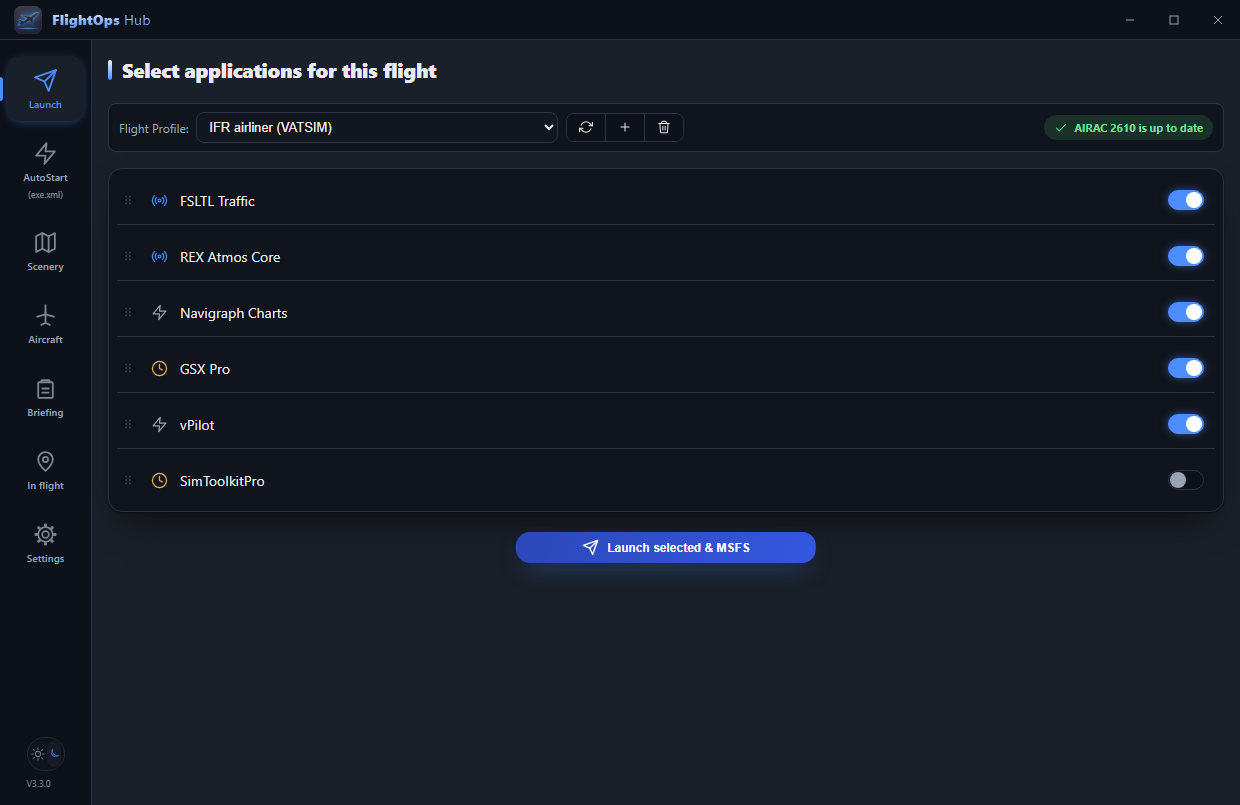
One click starts MSFS and every add-on you picked — and Smart Launch waits for SimConnect to confirm the sim is really up before firing FSLTL and friends.
Built for simmers with dozens of add-ons in their Community folder who want to fly — not click.
Before & after
Seven apps. One click. Not an exaggeration.
Without FlightOps Hub
Launch GSX, FSLTL, REX and friends by hand, one at a time, hoping the timing lines up
Find out mid-flight that scenery for your destination was never enabled
Dig through exe.xml by hand to toggle AutoStart add-ons
Close every add-on by hand after you land, or leave them running
Alt-tab out of the sim — or hunt for your phone — just to check ATC, weather or how far you have to go
With FlightOps Hub
Your SimBrief route, AIRAC cycle, and scenery are checked before you take off
Smart Launch fires each add-on once SimConnect confirms MSFS has actually finished starting up
Missing scenery is flagged and enabled with a single click
Background watch mode closes everything it started once MSFS exits
Your phone or tablet shows ATC, weather and your live progress along the route — and can start the whole flight from the couch
Why FlightOps Hub
It comes down to four things
One click to the runway
Stop opening seven apps by hand. FlightOps Hub launches everything in the right order — and Smart Launch fires add-ons like FSLTL only once MSFS has actually finished starting up, not on a timer guess.
Never launch into a broken flight
Your SimBrief route, AIRAC cycle, and installed scenery are checked before you take off — missing scenery gets flagged and enabled with one click, not discovered mid-flight.
A Community folder that stays sane
Enable, disable, and organize hundreds of add-ons safely — nothing is ever deleted, and misplaced or duplicate installs get caught automatically.
Your phone as a second screen
Scan a QR code and your phone or tablet becomes a cockpit companion: ATC, ATIS and weather for your route, your SimBrief cheat sheet, live progress and fuel from the sim, and a Launch button — over your home network, with nothing to install and no account.
Already sold? Skip to pricing. Still comparing? Here's everything, tab by tab.
Launch & Smart Launch
Smart Launch (SimConnect): waits for live SimConnect data confirming MSFS has actually finished starting up, then launches add-ons like FSLTL or REX Atmos — not just after a fixed timer guess.
Per-profile launch mode: switch any add-on between Immediate, Timer, and Smart Launch — as its global default, or just an override for the current flight profile.
Running-simulator detection: MSFS won't be relaunched if it's already running.
Missing-file guard: a warning if a selected add-on's file can no longer be found — with the option to proceed anyway.
Drag-and-drop checklist & auto-minimize: reorder a profile's add-on checklist by drag-and-drop, and let any add-on minimize itself shortly after launch.
Background watch mode: stays minimized in the system tray, monitors the flight, and automatically closes everything it started once MSFS exits.
Cancel or force-close, mid-flight: cancel a pending Smart Launch, or force-close everything you started, right from the tray icon.
One tray icon, always: a single icon while minimized, launching or watching the sim — with the pairing QR code for your phone in its menu whenever the Companion is on. The Launch button tells you what it will do (Launch, Launching…, Launched) and starts only the add-ons if the sim is already running.
Scenery & SimBrief
Interactive world map (Leaflet): every installed Community scenery plotted by ICAO code — enable or disable it right from its map marker.
SimBrief route validation: loads your latest flight plan and checks origin/destination/alternate against your installed sceneries, enable whatever's missing with one click, and see your actual route drawn on the map from the real navlog waypoints — with the diversion to your alternate shown as a distinct dashed leg.
Live ATC, ATIS & weather (VATSIM/IVAO): see who's controlling your route in real time, complete with the full ATIS text — and even with the network off, you still get a METAR straight from your SimBrief plan instead of nothing. Your planned callsign is shown too, translated to radiotelephony (e.g. "Lufthansa 390"), with one-click route copying for your FMC.
AIRAC cycle mismatch warning: flags when your SimBrief plan was generated with a different navdata cycle than the one you have installed.
GSX profile detection: color-codes whether a matching GSX profile exists for each scenery (green / orange / red).
Community folder health check: catches misplaced installs and duplicate installs — read-only, nothing is ever moved or deleted automatically.
Disk usage & space protection: see exactly how much space Community and disabled add-ons are using, with a free-space check before moving anything between drives.
Standalone airport check: look up live ATC and METAR for any ICAO — no SimBrief plan needed — shown automatically whenever no SimBrief username or ATC network is configured.
Search: jump straight to a specific airport by ICAO, name, or country.
Duplicate-ICAO warning: flags when two enabled sceneries share the same ICAO code, so you always know which one is actually active.
AnyAirline integration (optional): send your validated flight plan straight to AnyAirline with one click, and get a one-click suggestion to add the AnyAirline Connector app to your launch checklist if it's running on this PC.
Flight category at a glance: every METAR gets a color-coded VFR / MVFR / IFR / LIFR chip worked out from its ceiling and visibility, so you don't have to decode the string.
Sceneries by continent, with country flags: the Scenery list is grouped continent → country, with continent silhouettes and country flags, and collapses so a large library stays readable.
Undo last change: one click puts every package the last Apply moved back where it was — on both the Scenery and Aircraft tabs, even after a restart. Anything you've moved by hand since is left alone.
Choose where AnyAirline opens: the flight plan can open on this PC, in your phone's own browser (where you're already signed in), or as AnyAirline's tablet WebDeck — set separately for the desktop app and for the Companion.
Aircraft & Liveries
Smart grouping: liveries are automatically nested under their matching aircraft and developer, and toggle safely by moving folders in/out of Community — nothing is ever deleted.
Real developer names: a curated lookup resolves cryptic folder prefixes (fnx, tfdidesign…) into real studio names.
Reliable livery detection: understands both the classic MSFS2020 aircraft.cfg wiring and MSFS2024's modular livery.json/common-folder packages — not just a package's self-reported manifest type.
Manual classification overrides: re-assign an aircraft or livery by hand whenever the automatic detection still gets it wrong.
Not foolproof: classification can occasionally get an aircraft/livery split wrong — always glance over new add-ons the first time, and use the override above if something looks off.
AutoStart (exe.xml) & System Tools
Safe XML management: enable/disable MSFS's own internal AutoStart add-ons, with custom display names and a search box for long lists.
One-click backup restore: exe.xml is backed up automatically before its first edit — restore it from the UI any time.
AIRAC cycle validation here too — see at a glance whether your navdata is current.
Configurable paths: override the Community folder, the disabled-add-ons folder, the GSX profiles folder, and exe.xml location in Settings — even onto a different drive.
Settings, Backups & Diagnostics
Backup & restore: export your flight profiles, aircraft classification overrides, and addon list into one portable file — ideal before a reinstall or moving to a new PC.
Diagnostics export: bundles your app version, OS info, and a recent activity log into one text file for bug reports — your SimBrief username and Windows account name are stripped out before it's saved.
One-click updates: a silent update check on startup — confirm once and FlightOps Hub downloads, installs, and restarts itself automatically.
Launch at Windows startup, straight to the tray: when enabled, FlightOps Hub starts already minimized to the tray — no window ever flashes open.
Tray quick-launch: right-click the tray icon to pick a flight and exe.xml profile and launch MSFS plus your add-ons — no need to open the window at all.
Adjustable UI scale: resize the whole interface for high-DPI displays or a multi-monitor simmer setup.
License management: move your license to a new PC anytime — deactivate it in Settings on the old one, then activate it on the new one.
Startup splash screen: a branded loading screen while FlightOps Hub starts up.
Resilient licensing: an activated license keeps working without an internet connection — or while the license server is down — for up to 14 days between checks.
Briefing — your flight cheat sheet
Your SimBrief plan as a cheat sheet: flight, times (UTC), the full fuel breakdown and the weights — with a bar against each limit (ZFW, takeoff, landing) and a warning when one is over or within 3 % of it, or when the plan is 6 hours old.
Weather in plain words: the METAR of your origin, destination and alternate decoded in the app's language, with the VFR / MVFR / IFR / LIFR chip. Current METAR and TAF are fetched fresh (aviationweather.gov, VATSIM as a fallback), and it always says which one you are reading and how old it is.
Runway, transition, route: the planned runway, transition altitude and transition level (as a flight level) per airport, the route ready to paste into the FMC with one tap, and the step climb read out as 'VEMUT FL350'.
The original OFP, one tap away: swap the cheat sheet for SimBrief's own OFP text right in the tab — on the phone too. It is cleaned first: no links or scripts get through, and pictures load only from SimBrief's own image folder.
Kilograms or pounds: a kg | lb switch converts fuel and weights, and it is one choice for the whole app — change it on the phone or the PC and both follow. Plans generated in pounds are labelled as such, so the two are never mixed up.
In flight — your aircraft on the map
Your aircraft on the route: read live from the simulator through SimConnect and drawn on your SimBrief route, turned to its heading, with the trail you have flown. Off until you switch it on in Settings — until then the app never connects to the sim.
Click any waypoint: altitude, wind, temperature, planned time and planned fuel on board (EFOB) from your SimBrief plan — and, once you have passed it, the fuel you really had next to the plan.
Phase of flight, without the noise: parked, taxi, takeoff, climb, cruise, descent, approach, landing — and under the map the three figures that matter in that phase, such as ETA, distance to go and fuel against the plan.
How the landing went: after touchdown, the sink rate in feet per minute and the G load, with a hard landing marked in amber. The rate is the simulator's own touchdown figure; the G is the highest of a few readings a second, so a close estimate of the peak.
On the phone too, and only while you look: the Companion has the same tab with the same map and card. The tab reads the sim only while it is the open one, so it costs the sim nothing the rest of the time.
Companion — phone & tablet
Scan and go: switch it on in Settings, scan the QR code, and a page opens in your phone's browser — nothing to install, no account, no cloud. It talks straight to your PC over your home Wi-Fi.
Hub: your SimBrief plan at a glance — route, radiotelephony callsign, aircraft, flight time and an AIRAC warning — with a card per airport showing who's online on ATC (ATIS on request), the live METAR with its flight category, and the GSX and scenery status.
One tap to fix missing scenery: if an airport's scenery is installed but switched off, enable it right from the phone.
Briefing and In flight on your phone: the same two tabs as in the app — the SimBrief cheat sheet with decoded weather and, if you switch it on, your live position, phase of flight and fuel on the route map. It is the very same view as on the PC, and the kg | lb choice follows you between the two.
Launch from the couch: pick a flight profile (and an exe.xml profile) and start the whole flight remotely — built for home cockpits where the PC is out of reach once you're seated.
Scenery (optional): browse and switch your whole Community library by continent and country, staged and applied with a progress bar. Off by default — you switch it on separately.
Night mode: a red theme that protects your night vision on a phone in a dark cockpit.
Your language, your home screen: the page follows the app's language (all five), folds away its tab bar to save space, and can be added to your home screen as an app icon.
Connection test: if the phone can't connect, Settings shows why — the server, your network address, Windows Firewall, a network set to 'Public' — and you can use the PC's name (.local) instead of an IP address, so a saved shortcut survives a router change.
Private by design: home network only, off by default, protected by a random pairing token in the QR code (regenerate it any time to cut off old links). It's plain HTTP, so use it on your home network — not on public Wi-Fi.
vPilot Tablet Bridge (VATSIM)
One-click install: if FlightOps Hub finds vPilot on your PC, Settings offers to install the free, open-source (MIT) vPilot Tablet Bridge plugin for you — vPilot just has to be closed first.
vPilot on your tablet: the plugin serves vPilot's radio, ATC, traffic and transponder controls as a tablet page — shown as a vPilot tab inside the Companion, so one QR code covers both.
Fits in: it follows the app's language and the Companion's night mode, and the tab only appears once the plugin is installed — no vPilot, no tab.
Languages
Interface available in English, Czech, German, Spanish, and Chinese.
Czech and English are hand-written; the rest are AI-translated and flagged as such in the app.
From the developer
Why FlightOps Hub exists
I've been flying in the sim since 2007. When my health later threw a few serious curveballs my way, sitting down at the sim and just flying became one of the few things that let me switch my head off completely.
What kept bugging me, though, was the endless clicking through ten different apps before every departure. There was no tool for that, so I just built one myself. What started as freeware (V2.2) gradually turned into a complete rewrite as V3 — and to make it worth pouring more time into, I moved to a paid model.
Don't expect a big company behind it, though. It's still just me — one person who'll actually reply to you on Discord.
One license, free updates for the lifetime of version 3.x, installs on your PC with no
administrator rights required.*
Full version of every feature listed above
Automatic updates built right into the app
Support for both MSFS 2020 and 2024, Steam and MS Store
14-day free trial, no strings attached
* A few features, like fully automatic background closing of admin-launched add-ons, work best when FlightOps Hub itself is run as Administrator — optional, and easy to enable in Settings.
14 days free, then a one-time purchase, excl. VAT · invoice by email
Good to know
Frequently asked questions
Does it work with Steam and the Microsoft Store?
Yes. Pick your platform and MSFS version (2020 or 2024) in Settings, and FlightOps Hub locates the right exe.xml and Community folder automatically — or you can override any path by hand if auto-detection ever picks the wrong one.
Does FlightOps Hub use symlinks in my Community folder?
No. Enabling or disabling scenery, aircraft, and liveries physically moves each package's folder in and out of Community — nothing is deleted, and no symlinks or junctions are created, so Explorer and every other tool always sees your real files exactly where they expect them.
How many PCs does one license cover?
One license covers a single PC at a time. Moving to a new computer just means deactivating the license on the old one from Settings and activating it on the new one.
Is there a free trial?
Yes — every new license starts with a 14-day full-featured trial, so you can run it against your own Community folder and your own flights before deciding to keep it.
Why does Windows SmartScreen warn me during install?
FlightOps Hub is a small independent project and doesn't yet have a paid commercial code-signing certificate, so SmartScreen may flag the installer as from an "unknown publisher" the first time you run it. That's expected and nothing is wrong — click "More info" → "Run anyway" to continue. Code signing is on the roadmap.
Does Background watch mode close add-ons launched as Administrator?
Short answer: Yes, but Windows may ask for your confirmation unless FlightOps Hub also runs as Administrator.
How it works: Windows security prevents standard programs from force-closing software running with Administrator rights. Since FlightOps Hub runs as a standard program by default (so it never bothers you with admin prompts on startup), closing an admin-level add-on causes Windows to show its own permission popup. Every non-admin add-on still closes completely automatically.
How to make it fully automatic: If you want every add-on to close automatically with no popups at all:
Go to Settings in FlightOps Hub.
Enable "Always run FlightOps Hub as Administrator".
Restart FlightOps Hub.
Once FlightOps Hub has admin rights, it can close any add-on seamlessly in the background.
Is the phone Companion safe? Does it go through the internet?
It's optional and off by default. When you switch it on, FlightOps Hub runs a small web server on your PC that only devices on your own network can reach — nothing goes through our servers or the internet, and there's no account. Your phone pairs by scanning a QR code that carries a random secret token; without it the server refuses every request, and regenerating the code instantly invalidates old links.
It uses plain HTTP (not encrypted), so use it on your home network, never on public Wi-Fi. Remote scenery management is a separate opt-in that's off by default.
My phone can't open the Companion page. What now?
Open Settings → Companion and press Test connection. It checks that the server is running, which network address your PC has (and warns if it's on several networks), whether Windows Firewall lets your phone through, and whether Windows treats your network as 'Public' — the most common causes. Also make sure the phone is on the same Wi-Fi as the PC: not a guest network, mobile data or a VPN.
Do I need vPilot or VATSIM to use the Companion?
No. The Companion works with or without them. If you use vPilot, FlightOps Hub can install the vPilot Tablet Bridge plugin and a vPilot tab appears in the Companion; if you don't, there simply is no vPilot tab.
What does the In flight tab need, and does it change anything in the sim?
It is off until you switch it on in Settings → Flight Identity, and it needs your SimBrief username for the route. It only reads the simulator through SimConnect — the same channel Smart Launch uses — and never changes anything in it. It reads only while the tab is open, and nothing leaves your PC (on the phone, only to your own paired device). The map tiles are the one thing loaded from the internet.
Legal
Privacy & terms
Privacy Policy
FlightOps Hub does not collect or share any personal data. Payments and the processing of personal data during a license purchase are securely handled by our Merchant of Record, Creem.io.
Purchasing a one-time, lifetime license for $7.99 (excl. VAT) gives you a personal, non-transferable license key to activate FlightOps Hub. The software is provided "as is", without warranty. Payments are processed by Creem.io.